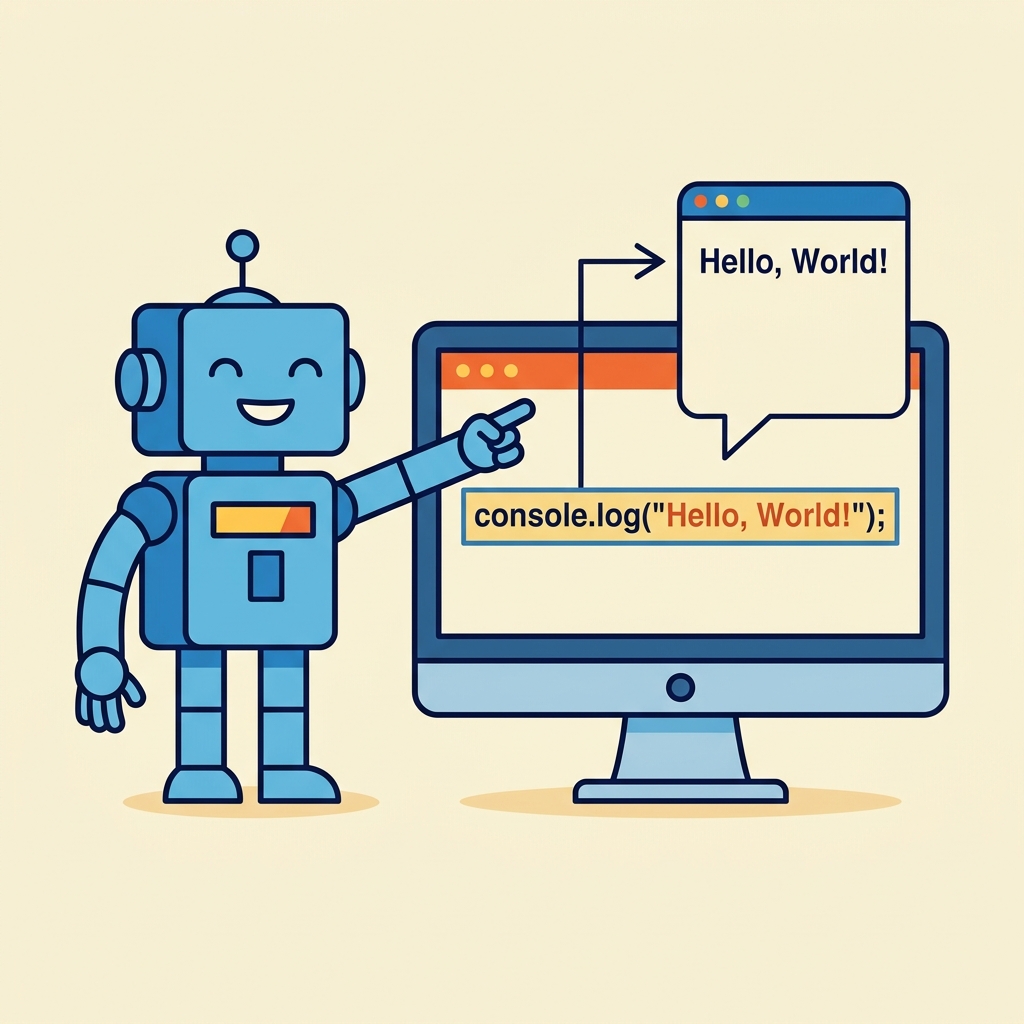
JavaScript runs inside your web browser to add interactivity to web pages. Your first JavaScript program will display a message in the browser console.
To write JavaScript, you can use the <script> tag inside an HTML file or run code directly in the browser’s developer console.
📌 Deep Dive: Hello World in JavaScript
console.log('Hello, World!');This code sends the message Hello, World! to the browser’s console.
💡 Running Your Code
Open your browser, press F12 or Ctrl+Shift+I (Cmd+Option+I on Mac) to open Developer Tools, then go to the Console tab to run JavaScript directly.
Embedding JavaScript in an HTML file looks like this:
📌 Deep Dive: Embedding JavaScript
<script>
  console.log('Hello, World!');
</script>
⚠️ Important
JavaScript code inside <script> runs as soon as the browser loads it. Place scripts at the bottom of the HTML body or use defer attribute to avoid blocking page rendering.
JavaScript can also display messages on the webpage itself, not only in the console. The alert() function shows a popup box:
📌 Deep Dive: Alert Popup
alert('Hello, World!');Use console.log() for debugging and alert() for simple user notifications.
| console.log() | alert() |
|---|---|
| Logs message to browser console | Shows popup alert box |
| Non-intrusive, used for debugging | Blocks user interaction until dismissed |
| Used by developers | Seen by users |
Now you know how to write and run your first JavaScript program! Practice by changing the message inside console.log() or alert().
Quick Knowledge Check
Test what you just learned
Question 1 of 2
Which JavaScript function prints a message to the browser console?
Question 2 of 2
Where can you run JavaScript code directly in your browser?
Loading results...