Before writing JavaScript code, you need the right tools and environment. This lesson guides you through setting up a simple, effective JavaScript development environment.
1. Choose a Code Editor
A good code editor enhances productivity with features like syntax highlighting, auto-completion, and debugging tools. Popular editors include:
- Visual Studio Code (VS Code): Highly customizable and widely used.
- Sublime Text: Lightweight and fast.
- Atom: Open-source and beginner-friendly.
💡 Recommended
VS Code is highly recommended for beginners due to its extensive ecosystem and built-in terminal.
2. Install Node.js
Node.js allows you to run JavaScript outside the browser and includes npm (Node Package Manager) for managing libraries.
- Download and install from https://nodejs.org/
- Choose the latest LTS (Long Term Support) version for stability.
⚠️ Verify Installation
After installation, confirm by running these commands in your terminal:
node -v
npm -v
They should display version numbers.
3. Use Your Browser's Developer Tools
Modern browsers include built-in developer tools where you can write and test JavaScript instantly:
- Open Developer Console: Press
F12orCtrl+Shift+I(Windows/Linux) orCmd+Option+I(Mac). - Console Tab: Type JavaScript directly and see output immediately.
4. Create Your First JavaScript File
Using your code editor, create a new file named script.js. This will hold your JavaScript code. You can run this file with Node.js or link it to an HTML file to run in a browser.
| Tool | Purpose |
|---|---|
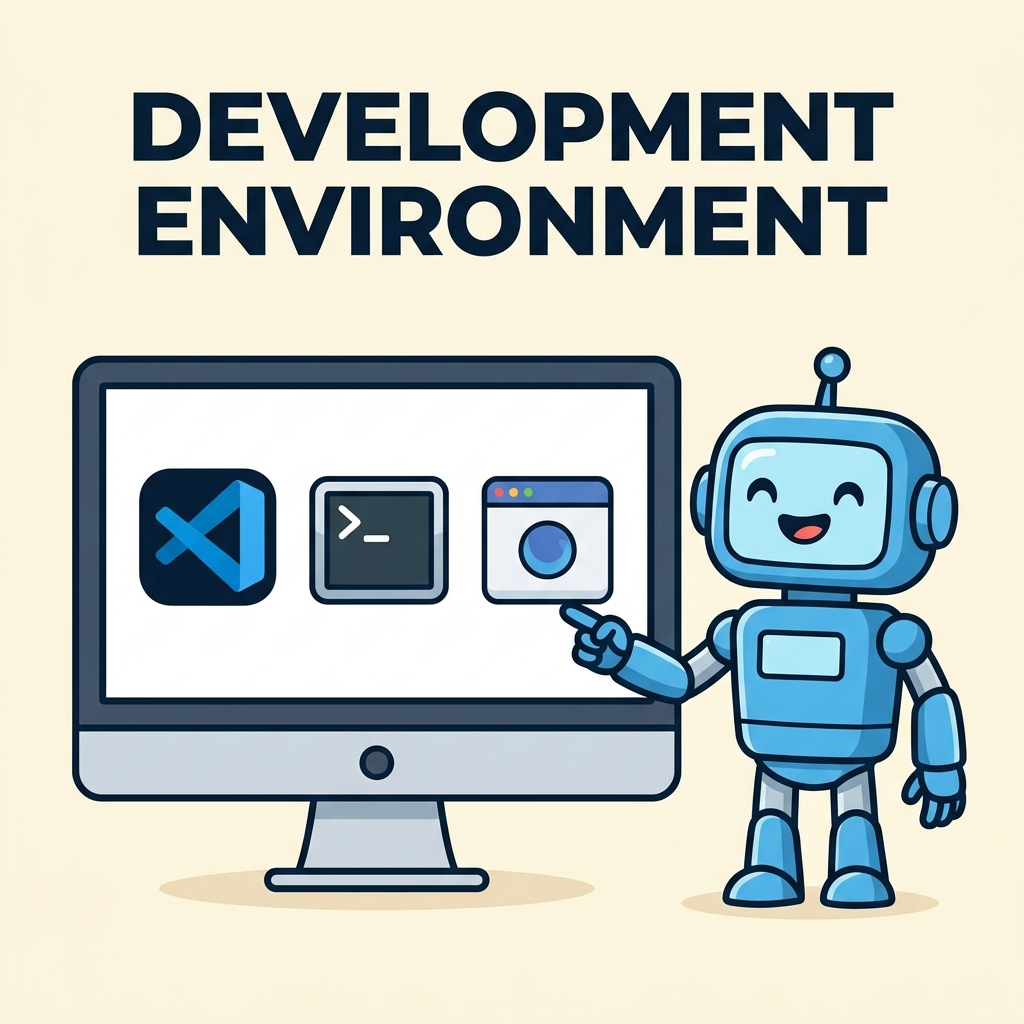
| VS Code | Writing and editing code |
| Node.js | Running code outside browser, package management |
| Browser Console | Quick testing and debugging |
💡 Quick Tip
Use the integrated terminal in VS Code (View → Terminal) to run Node.js commands without leaving your editor.
📌 Deep Dive: Running a JavaScript File with Node.js
// script.js
console.log('Hello, JavaScript environment!');Now you're ready to start coding in JavaScript with the right environment set up.
Quick Knowledge Check
Test what you just learned
Question 1 of 2
Which tool is recommended as a code editor for JavaScript beginners?
Question 2 of 2
What command verifies that Node.js is correctly installed?
Loading results...