When programming in Python, one of the most frequent tasks you’ll encounter is displaying text to users or constructing messages dynamically. This often involves inserting variable data into strings—like numbers, names, dates, or other information—in a readable and controlled way. This process is known as string formatting. Understanding how to format strings effectively is fundamental for producing clean, user-friendly output and for preparing data for reports, logs, or user interfaces.
In this lesson, we’ll explore the most popular and modern methods of string formatting in Python, step by step, from the simplest to the more powerful options. By the end, you’ll confidently embed variables and expressions within strings and control how the output looks.
Why Format Strings?
Imagine you want to greet a user by name or display a product’s price. You could try to concatenate strings manually like this:
📌 Deep Dive: Simple Concatenation
name = "Alice"
price = 19.99
message = "Hello " + name + ", your total is $" + str(price)
print(message)While this works, it is cumbersome and error-prone, especially when you have multiple variables or need specific formatting like decimal places or padding. String formatting methods provide cleaner, more readable, and powerful ways to build such strings.
1. The Old Style: Percent (%) Formatting
This is the classic way inherited from the C language’s printf style. It uses placeholders like %s for strings, %d for integers, and %f for floating-point numbers.
📌 Deep Dive: Percent (%) Formatting
name = "Bob"
age = 30
height = 1.75
print("Name: %s, Age: %d, Height: %.2f meters" % (name, age, height))Here:
%sinserts a string.%dinserts an integer.%.2finserts a float rounded to 2 decimal places.
This method still works but has some drawbacks: it can be confusing with multiple variables, less flexible for complex expressions, and the syntax is somewhat dated.
2. The str.format() Method
Introduced in Python 3, this method is more powerful and user-friendly. It uses curly braces {} as placeholders inside the string and calls the format() method on the string, passing in variables or expressions.
📌 Deep Dive: Using str.format()
name = "Cathy"
age = 25
height = 1.68
print("Name: {}, Age: {}, Height: {:.1f} meters".format(name, age, height))Key features:
- Placeholders
{}are replaced by positional arguments. - You can specify formatting options inside the braces, like
{:.1f}to show one decimal place. - Named arguments make it clearer:
📌 Deep Dive: Named Arguments with str.format()
print("Name: {n}, Age: {a}, Height: {h:.2f} meters".format(n=name, a=age, h=height))3. f-Strings (Literal String Interpolation) — The Modern Favorite
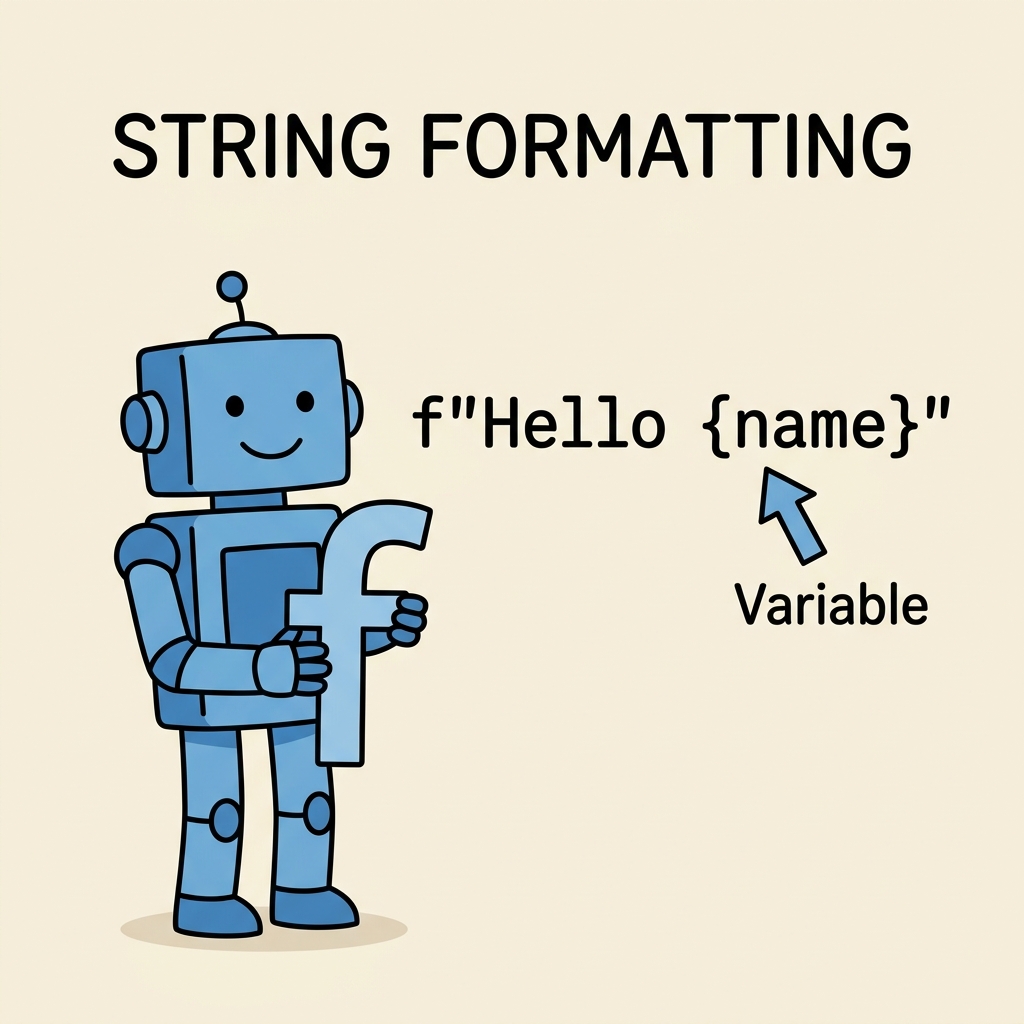
Starting with Python 3.6, f-strings provide the most readable and concise way to format strings. By prefixing a string with f or F, you can directly embed Python expressions inside curly braces. This makes the code easier to write and read.
📌 Deep Dive: f-Strings in Action
name = "David"
age = 40
height = 1.82
print(f"Name: {name}, Age: {age}, Height: {height:.2f} meters")Notice how expressions like {height:.2f} allow inline formatting of the variable. You can also put any valid Python expression inside the braces:
📌 Deep Dive: Expressions Inside f-Strings
quantity = 5
price_per_item = 3.99
print(f"Total price: ${quantity * price_per_item:.2f}")Controlling Alignment, Width, and Padding
String formatting isn’t just about inserting variables — it also allows you to control how they appear. For example, you might want to align text or numbers in columns, pad values with zeros, or limit maximum string length.
str.format()| Format Specifier | Effect |
|---|---|
:>10 | Right-align in a 10-character wide field |
:^10 | Center-align in a 10-character wide field |
:<10 | Left-align in a 10-character wide field |
:0>5d | Pad integer with leading zeros to 5 digits |
:.3f | Float with 3 decimal places |
:.5s | Truncate string to 5 characters |
📌 Deep Dive: Aligning and Padding with f-Strings
items = ["apple", "banana", "cherry"]
prices = [0.5, 0.75, 1.25]

print(f"{'Item':<10} {'Price':>6}")
for item, price in zip(items, prices):
print(f"{item:<10} ${price:>5.2f}")Formatting Numbers: Integers, Floats, and Thousands Separator
Python provides many options to format numbers for readability, including:
- Specifying decimal precision in floats.
- Adding thousands separators (commas or underscores).
- Displaying numbers in different bases (binary, octal, hexadecimal).
📌 Deep Dive: Number Formatting
number = 1234567.89123

print(f"Default: {number}")
print(f"Rounded to 2 decimals: {number:.2f}")
print(f"With comma separator: {number:,.2f}")
print(f"With underscore separator: {number:_}")
print(f"Binary: {int(number):b}")
print(f"Hexadecimal: {int(number):x}")Escaping Braces and Using Braces Literals
Because braces {} denote placeholders, if you want to include literal braces in your string, you must escape them by doubling:
📌 Deep Dive: Escaping Braces
print(f"Use double braces to show a brace: {{ and }}")Comparison Summary: Different String Formatting Methods
| Method | Description | Example | Recommended Use |
|---|---|---|---|
| Percent (%) Formatting | Old style, uses `%` operator with placeholders | "%s is %d years old" % ("Eve", 28) |
Legacy code, simple cases |
str.format() |
More flexible, uses `format()` method with `{}` placeholders | "{name} is {age} years old".format(name="Eve", age=28) |
When supporting Python 3.0+, complex formatting |
| f-Strings | Modern, concise, embeds expressions directly | f"{name} is {age} years old" |
Python 3.6+, preferred for clarity and power |
Advanced Tips for String Formatting
Using dictionaries or objects: You can pass dictionaries or object attributes to format strings, making your code cleaner.
📌 Deep Dive: Formatting with Dictionaries
person = {"name": "Fiona", "age": 22}
print("Name: {name}, Age: {age}".format(**person))Using f-strings with expressions and functions: You can even call functions or use conditional logic inside f-strings.
📌 Deep Dive: Expressions in f-Strings
def greet(name):
    return "Hello " + name + "!"

name = "Grace"
print(f"{greet(name)} You have {5 + 3} new messages.")Common Pitfalls and How to Avoid Them
⚠️ Mixing Positional and Named Placeholders
Avoid mixing positional {} and named {name} placeholders in the same format string—it can lead to confusing errors or unexpected results.
⚠️ Using f-Strings in Older Python Versions
f-Strings require Python 3.6 or newer. Running them in older versions will cause syntax errors. Use str.format() or percent formatting if you need backward compatibility.
Summary
Mastering string formatting in Python allows you to create dynamic, readable, and professional output. Here’s a quick recap:
- Percent formatting is the oldest method but still works.
str.format()gives more flexibility and clearer syntax.- f-Strings are the most modern, readable, and powerful method recommended for all Python 3.6+ code.
- You can control alignment, padding, precision, and numeric formatting with simple syntax.
- Use double braces
{{ }}to include literal braces in your output.
Try practicing with your own variables and formatting options to see how you can make your program output both functional and elegant.
Quick Knowledge Check
Test what you just learned
Question 1 of 2
Which Python string formatting method allows you to embed expressions directly inside the string using curly braces?
Question 2 of 2
How do you include a literal brace character { or } in a Python f-string?
Loading results...