Working with files is an essential skill in Python programming. Files allow your programs to persist information beyond the runtime of the script, enabling data storage, sharing, and later retrieval. Whether you want to save user inputs, process logs, or handle configuration data, learning how to read from and write to files is fundamental.
In this lesson, we will explore how to effectively open, read, write, and close files in Python using built-in functions and best practices. By the end, you’ll be comfortable handling text files for basic input/output operations.
Understanding Files in Python
At its core, a file is a container in a storage device that holds data. Python provides a straightforward interface to interact with files via the open() function, which returns a file object. This object can then be used to perform operations such as reading, writing, or appending data.
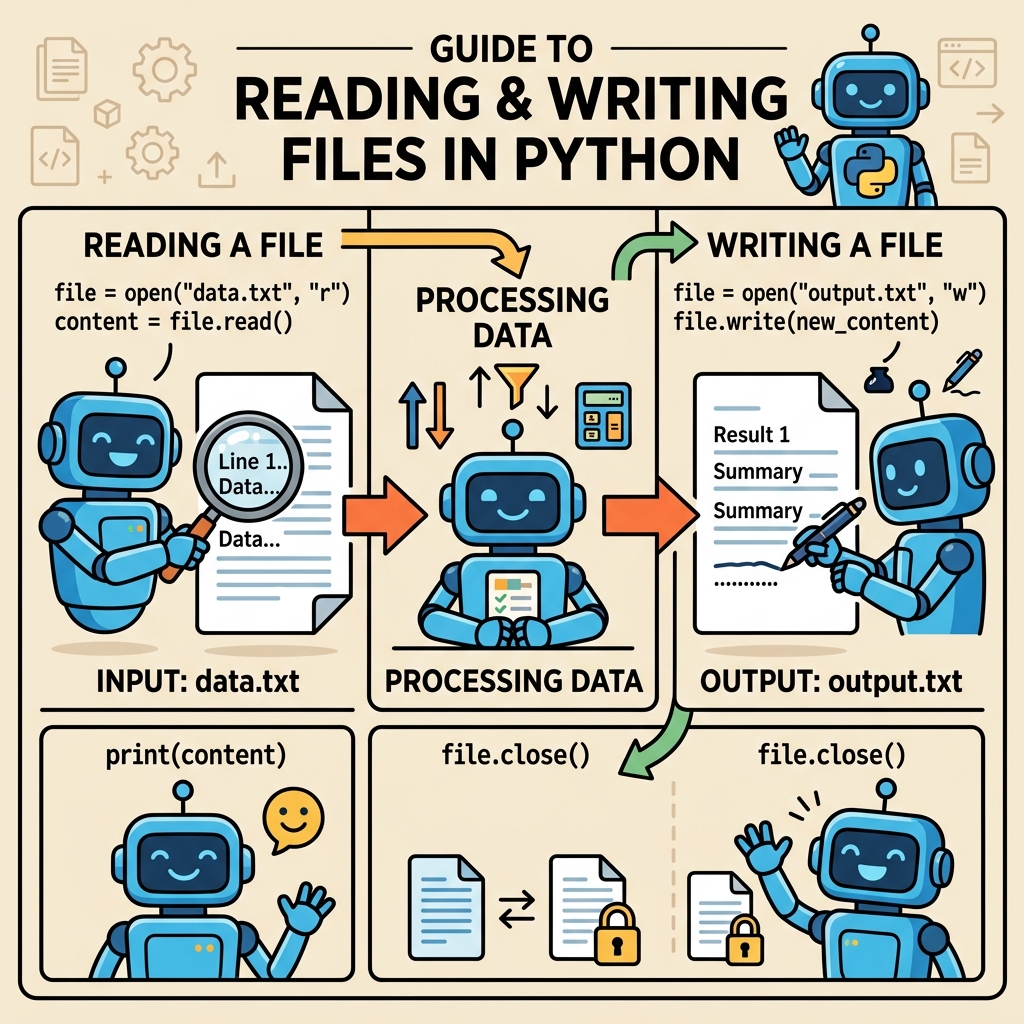
When opening files, you specify a mode indicating what you want to do with the file:
| Mode | Description |
|---|---|
| 'r' | Read (default). Opens a file for reading; error if it doesn't exist. |
| 'w' | Write. Opens a file for writing; creates or truncates existing file. |
| 'a' | Append. Opens for writing, but adds data to the end. |
| 'x' | Create. Creates a new file; fails if file exists. |
| 'b' | Binary mode (e.g., 'rb' or 'wb'). For non-text files. |
| 't' | Text mode (default). For text files. |
Most of the time, you'll work with text files, so the 't' mode is implied. You can combine modes, for example, 'rb' means read in binary mode.
Opening and Closing Files Safely
It's important to close a file after you're done with it to free system resources and ensure data integrity. The classic way is:
📌 Deep Dive: Classic Open and Close
file = open('example.txt', 'r')
content = file.read()
print(content)
file.close()However, if an error occurs during reading or writing, the file.close() line might never run. To avoid this, Python offers the with statement, which ensures the file is closed automatically when the block finishes, even if exceptions occur.
📌 Deep Dive: Using with Statement
with open('example.txt', 'r') as file:
    content = file.read()
    print(content)
# File is automatically closed hereReading Files in Different Ways
Once a file is opened in read mode, you can extract data in multiple ways depending on your needs.
- Read the entire file at once:
file.read()returns the whole content as a string. - Read line by line:
file.readline()reads one line at a time. - Read all lines into a list:
file.readlines()returns a list of lines. - Iterate through the file object: Python allows looping over the file object directly.
📌 Deep Dive: Various Reading Methods
with open('example.txt', 'r') as f:
    # Read the entire content
    full_text = f.read()
    print('--- Full text ---')
    print(full_text)

with open('example.txt', 'r') as f:
    # Read line by line
    first_line = f.readline()
    print('--- First line ---')
    print(first_line)

with open('example.txt', 'r') as f:
    # Read all lines into a list
    lines = f.readlines()
    print('--- All lines ---')
    print(lines)

with open('example.txt', 'r') as f:
    # Iterate through file line by line
    print('--- Iteration ---')
    for line in f:
print(line.strip())Writing to Files: Creating and Modifying Content
Writing files lets you create new files or overwrite existing ones. Use the mode 'w' for writing from scratch, or 'a' to add content at the end of an existing file. Keep in mind if the file does not exist, both modes will create it.
Writing is done using the write() method for strings, or writelines() if you want to write multiple lines at once.
📌 Deep Dive: Writing and Appending to Files
# Writing new content (overwrites if file exists)
with open('output.txt', 'w') as f:
    f.write('Hello, world!
')
    f.write('This is a new file.
')

# Appending content to the end
with open('output.txt', 'a') as f:
    f.write('Appending another line.
')

# Writing multiple lines at once
lines = ['Line 1
', 'Line 2
', 'Line 3
']
with open('output.txt', 'w') as f:
f.writelines(lines)output.txt with the specified content.💡 Important:
The write() method does NOT add newline characters automatically. You must include '
' yourself to separate lines.
Working with File Paths and Directories
When opening files, you can specify absolute or relative paths. Relative paths depend on your current working directory, which you can check with:
📌 Deep Dive: Checking Current Working Directory
import os
print(os.getcwd()) # Prints the current working directoryTo work with paths safely and portably, consider using the os.path module or the modern pathlib library, which makes it easier to join paths or check if files exist.
📌 Deep Dive: Using pathlib for Paths
from pathlib import Path

file_path = Path('data') / 'myfile.txt'
print(file_path)  # data/myfile.txt

# Check if file exists before opening
if file_path.exists():
    with file_path.open('r') as f:
        content = f.read()
        print(content)
else:
print('File does not exist.')or
File does not exist.
Common File Handling Errors and How to Avoid Them
While working with files, you may encounter several typical issues. Let's review the most common ones and how to handle them gracefully.
- FileNotFoundError: Trying to open a file for reading that does not exist.
- PermissionError: Insufficient permissions to read/write the file.
- IsADirectoryError: Opening a directory as if it were a file.
To avoid your program crashing due to these errors, use try-except blocks:
📌 Deep Dive: Handling File Exceptions
try:
    with open('missing.txt', 'r') as f:
        content = f.read()
        print(content)
except FileNotFoundError:
    print('Oops! The file you are trying to read does not exist.')
except PermissionError:
print('You do not have permission to access this file.')⚠️ Warning:
Never ignore exceptions silently. Always handle them properly to inform the user or recover safely.
Binary Files vs Text Files
So far, we have focused on text files, which store data as human-readable characters. However, Python can also read and write binary files, such as images, audio, or compiled code.
Binary files are opened in modes like 'rb' (read binary) or 'wb' (write binary). When working with binary files, you read and write bytes rather than strings.
| Aspect | Text Mode ('r', 'w') | Binary Mode ('rb', 'wb') |
|---|---|---|
| Data Type | Strings (str) | Bytes (bytes) |
| Newline Handling | Automatic translation of newline characters | No translation; raw bytes |
| Use Cases | Plain text files, CSV, logs | Images, audio, executables |
| Example Read | content = f.read() (string) | data = f.read() (bytes) |
Example of reading an image in binary mode:
📌 Deep Dive: Reading a Binary File
with open('picture.jpg', 'rb') as img_file:
    data = img_file.read()
print(f'Read {len(data)} bytes from image file.')Summary: Best Practices When Reading & Writing Files
- Always use the
withstatement to open files. It ensures files are closed automatically. - Know your file mode: use
'r'for reading,'w'for writing (overwrites), and'a'for appending. - When writing text, remember to add newline characters yourself.
- Handle exceptions to make your programs robust and user-friendly.
- Use
pathlibfor managing file paths in a cross-platform way. - For binary files, always open with
'rb'or'wb'modes and handle bytes data.
💡 Real-World Tip:
File operations can be slow compared to in-memory operations. When working with large files, consider reading or writing data in chunks or streaming line by line to avoid excessive memory usage.
Try It Yourself
Create a text file called notes.txt and write some of your favorite quotes into it using Python. Then, read the file back and print the quotes one by one. Experiment with appending new lines and reading the file again.
Here is a small starter snippet you can build on:
📌 Deep Dive: Starter Code
quotes = [
    "The only limit to our realization of tomorrow is our doubts of today.
",
    "Do what you can, with what you have, where you are.
",
    "You miss 100% of the shots you don't take.
"
]

with open('notes.txt', 'w') as file:
    file.writelines(quotes)

with open('notes.txt', 'r') as file:
    for line in file:
print(line.strip())Quick Knowledge Check
Test what you just learned
Question 1 of 2
Which mode should you use to add new content at the end of an existing text file without erasing its current contents?
Question 2 of 2
What does the with statement guarantee when used to open a file?
Loading results...