When working with files in Python, understanding file modes is essential. File modes determine how a file is opened and what operations you can perform on it: reading, writing, appending, or even updating. Choosing the correct file mode ensures your program behaves as expected and prevents data loss or corruption.
Before diving into the specifics, let's consider what happens when you open a file. Behind the scenes, Python communicates with the operating system to access the file, and the mode tells it whether you want to read the contents, overwrite them, add new data, or perform other operations.
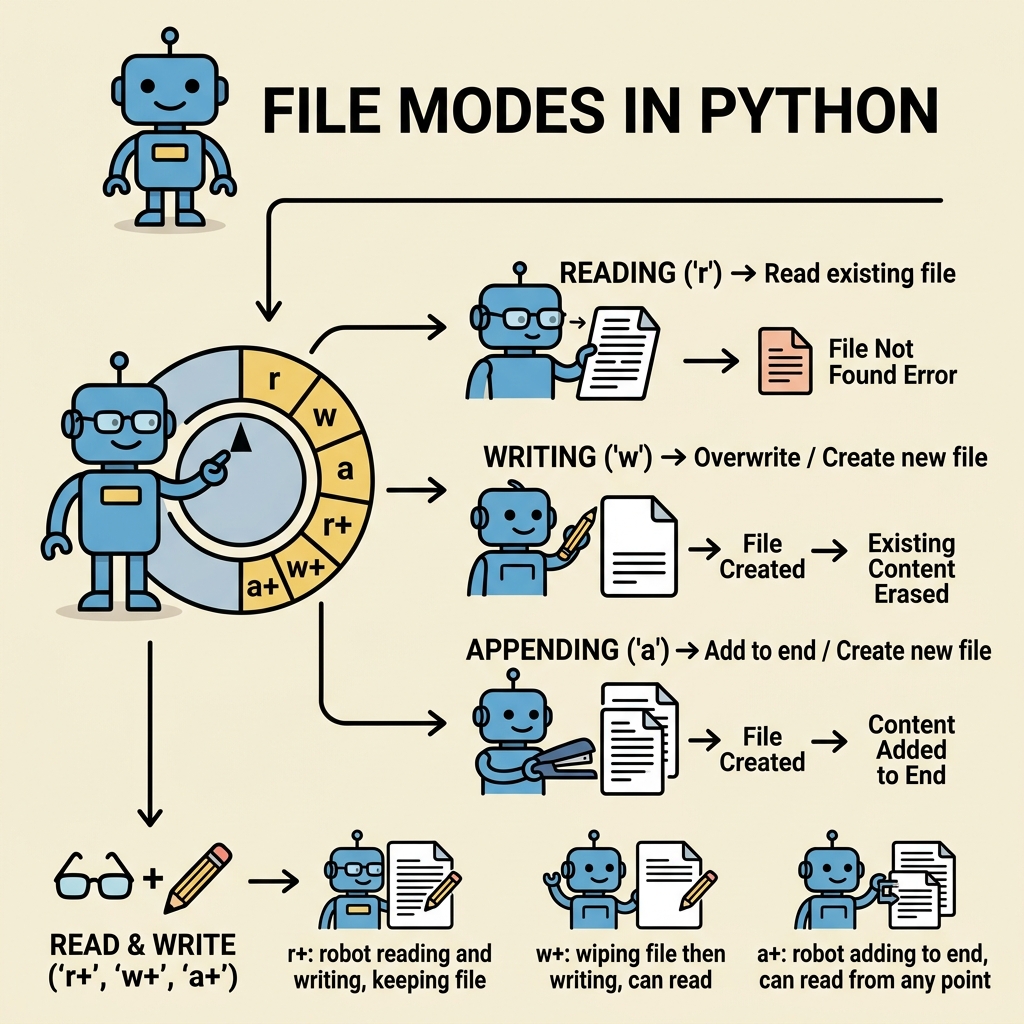
Core File Modes in Python
Python’s built-in open() function accepts a mode argument which is a string that specifies the mode. Here are the fundamental modes you will encounter:
| Mode | Description |
|---|---|
| r | Open for reading (default). The file must exist. |
| w | Open for writing. Creates a new file or truncates an existing file (empties it). |
| a | Open for appending. Creates the file if it doesn’t exist. Adds data to the end. |
| x | Create a new file and open it for writing. Fails if the file already exists. |
| b | Binary mode. Used in combination with other modes for binary files (e.g., rb, wb). |
| t | Text mode (default). Used in combination with other modes (e.g., rt, wt). |
| + | Open for updating (reading and writing). |
Notice that some modes can be combined, for example, r+ opens a file for both reading and writing without truncating it, while w+ opens for reading and writing but truncates the file.
How to Choose the Right File Mode?
Choosing the correct mode depends on what you want to do:
- Read existing data: Use
rorrb. - Create or overwrite a file: Use
worwb. - Add data to the end of a file: Use
aorab. - Create a new file, but fail if it exists: Use
xorxb. - Read and write: Use
r+,w+,a+(with or withoutbdepending on binary or text).
💡 Remember
Text mode is the default. Binary mode is necessary when working with non-text files like images, videos, or any file that requires exact byte-level operations.
Detailed Explanation of Each Mode
r — Read Only
This is the default mode. When you open a file in read mode, Python expects the file to already exist. If it doesn’t, you’ll get a FileNotFoundError. You can only read data; writing is not allowed.
📌 Deep Dive: Reading a File
with open("example.txt", "r") as file:
    content = file.read()
print(content)w — Write (Overwrite)
Opening a file in write mode creates the file if it does not exist. If the file exists, it erases all existing content before writing new data. Use this mode when you want to start fresh or replace the file’s content.
📌 Deep Dive: Writing a File
with open("example.txt", "w") as file:
file.write("New content replaces old content.")a — Append
The append mode opens the file and places the file pointer at the end so new data is added after existing content. The file is created if it doesn’t exist.
📌 Deep Dive: Appending to a File
with open("example.txt", "a") as file:
    file.write("
This line is appended.")x — Exclusive Creation
This mode is used to create a new file. If the file already exists, opening in x mode raises a FileExistsError. It’s a safe way to ensure you don’t accidentally overwrite existing files.
⚠️ Caution with x mode
Use x when you want to guarantee a new file is created. If the file exists, your program will halt unless you handle the exception.
+ — Update Mode (Read & Write)
Adding + to a mode opens the file for both reading and writing. The behavior depends on the base mode:
r+: Opens for reading and writing. File must exist. Does not truncate the file.w+: Opens for reading and writing. Creates or truncates the file.a+: Opens for reading and appending. Creates file if it does not exist. Writes are always at the end.
This is useful when you want to modify a file’s content without losing existing data unless you truncate it.
Text Mode vs Binary Mode
By default, Python opens files in text mode (t). This mode is suitable for files containing human-readable text. In text mode, Python automatically handles character encoding and newline conversions (e.g., converting
to the appropriate system newline).
Binary mode (b) treats the file as a binary stream of bytes. This mode is necessary for non-text files like images, audio, video, or any file format where exact byte sequences must be preserved. In binary mode, no encoding or newline translation is done.
| Aspect | Text Mode (t) | Binary Mode (b) |
|---|---|---|
| Default mode | Yes | No |
| Handles encoding/decoding | Yes | No |
| Newline conversion | Yes | No |
Data type returned by read() | str | bytes |
| Use case | Text files (e.g., .txt, .py, .csv) | Binary files (e.g., .jpg, .exe, .bin) |
Common Combinations and Examples
Let’s look at some common file mode combinations and their typical use cases:
rtorr: Read text file (default).rb: Read binary file.wtorw: Write text file (overwrite).wb: Write binary file (overwrite).atora: Append text file.ab: Append binary file.r+: Read and write text file.w+: Write and read (overwrite) text file.a+: Append and read text file.
📌 Deep Dive: Reading and Writing with r+ Mode
with open("example.txt", "r+") as file:
    content = file.read()
    print("Original content:")
    print(content)
    file.seek(0)  # Go back to the start
file.write("Updated content!")In the example above, r+ lets us read the file, then reposition the pointer to the beginning with seek(0) and overwrite part or all of the content.
File Modes and Exceptions
Using file modes incorrectly can cause errors. Here are some common exceptions related to file modes:
FileNotFoundError— Trying to read (r) a file that does not exist.FileExistsError— Trying to create (x) a file that already exists.UnsupportedOperation— Trying to write to a file opened in read-only mode or vice versa.
⚠️ Handling File Exceptions
It’s good practice to handle these exceptions using try-except blocks to make your programs more robust and user-friendly.
Summary: Practical Tips for Using File Modes
- Always know whether you want to read, write, append, or update before choosing a mode.
- Use
rwhen you only need to read existing files. - Use
wto start fresh and overwrite files. - Use
ato add new data without deleting old data. - Use
xwhen you want to create a file only if it doesn’t exist. - Use
+to combine reading and writing capabilities. - Don’t forget to specify binary mode (
b) when dealing with non-text files. - Use
withblocks to automatically close files and prevent resource leaks.
💡 Best Practice
Always open files using the with open(...) syntax. This ensures files are properly closed, even if errors occur.
Next Steps
Now that you understand file modes, try opening different files with various modes and experiment with reading, writing, and appending data. This hands-on practice will deepen your understanding and prepare you for more advanced file operations like working with CSVs, JSON, or binary data.
Quick Knowledge Check
Test what you just learned
Question 1 of 2
Which file mode would you use to add new text to the end of an existing text file without deleting its current content?
Question 2 of 2
What happens if you open a file with mode w and the file already exists?
Loading results...