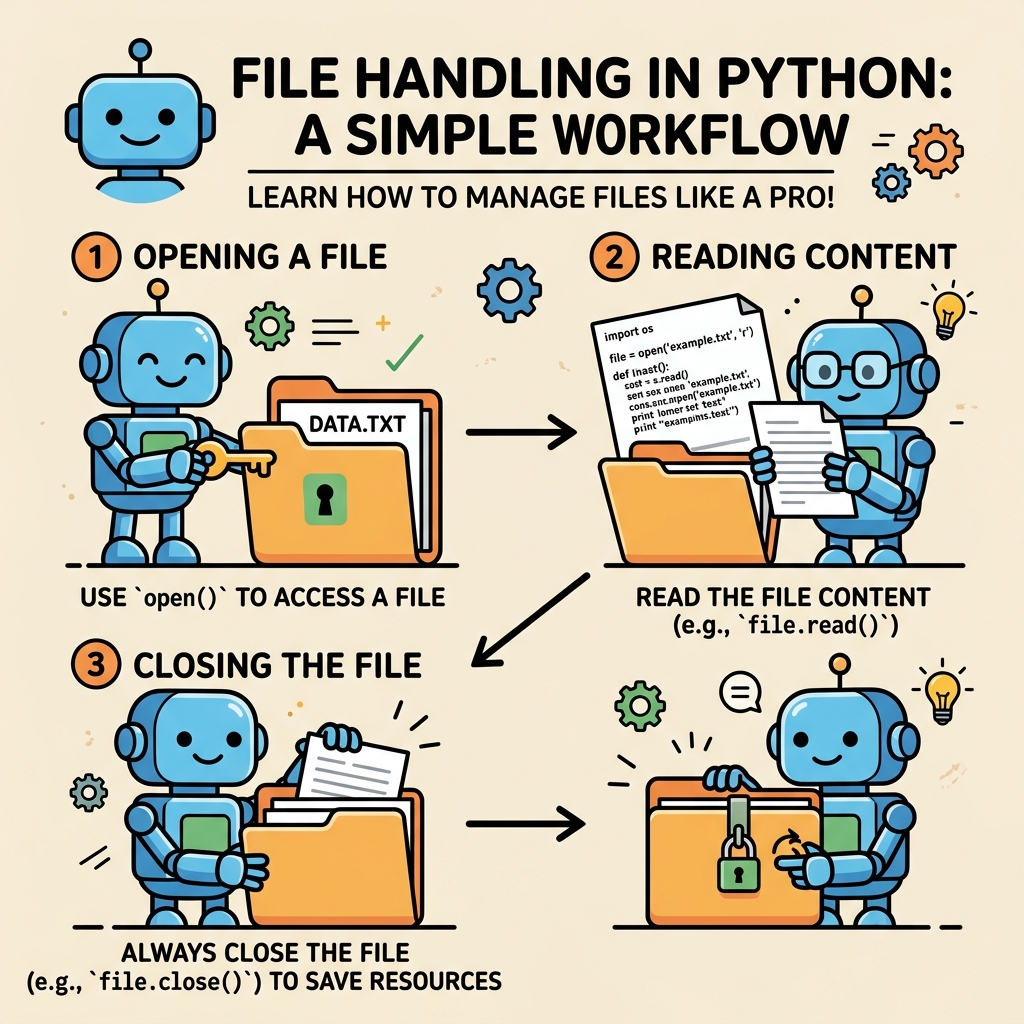
Files are the backbone of persistent data storage in programming. Whether you’re saving user settings, logging application activities, or processing large datasets, your programs will often need to read from and write to files. Python, with its simple and intuitive file handling features, makes these tasks straightforward and accessible even for beginners.
This lesson will take you on a practical journey through file handling in Python, covering everything you need to confidently open, read, write, and manage files.
Why is File Handling Important?
Imagine you are working on a text editor or a data analysis tool. Without the ability to save and retrieve information from files, your application would lose all data once it stops running. File handling allows programs to store data permanently on storage devices like hard drives or SSDs, enabling data persistence beyond the program’s execution.
💡 Analogy: Files as Notebooks
Think of a file as a physical notebook. You can open the notebook, read what's written inside, add new notes, erase or modify content, and finally close it to keep everything safe. Python’s file handling lets you interact with these “notebooks” programmatically.
Understanding File Modes
Opening a file in Python requires specifying the mode — this tells Python what operations you intend to perform. Here are the most common modes:
'r' — Read mode: Opens the file for reading. The file must exist.
'w' — Write mode: Opens the file for writing, truncating the file first (clears existing content). Creates the file if it doesn’t exist.
'a' — Append mode: Opens for writing but adds new data at the end of the file. Creates the file if it doesn’t exist.
'x' — Exclusive creation: Creates a new file but fails if the file already exists.
'b' — Binary mode: Reads or writes binary files (e.g., images, executables). Used in combination with other modes like 'rb' or 'wb'.
't' — Text mode: Default mode for text files.
File Modes Summary
Mode
Description
'r'
Read only (file must exist)
'w'
Write only (truncates or creates file)
'a'
Append only (creates file if missing)
'x'
Create file exclusively (fails if exists)
'b'
Binary mode (used with other modes)
't'
Text mode (default)
Opening and Closing Files
The fundamental function to access files in Python is open(). It returns a file object that you can use to perform operations like reading or writing.
Once done, it’s essential to close the file to free up system resources and ensure data integrity.
📌 Deep Dive: Basic File Opening and Closing
PYTHON
# Open a file in read mode
file = open('example.txt', 'r')
# Do something with the file
content = file.read()
print(content)
# Always close the file
file.close()
Output
This is the content of example.txt (if it exists)
⚠️ Important:
Always close files using close() after finishing operations. Not closing files can lead to memory leaks or data not being properly saved.
Using with Statement: The Best Practice
Python offers a better way to handle files called the with statement. It automatically manages opening and closing files, even if errors occur during file operations. This is the recommended way to work with files in Python.
📌 Deep Dive: Using with to Handle Files
PYTHON
with open('example.txt', 'r') as file:
content = file.read()
print(content)
# No need to call file.close()
Output
This is the content of example.txt (if it exists)
Reading Files - Various Approaches
Reading data from files can be done in different ways depending on your needs:
read(): Reads the entire content as a single string.
readline(): Reads one line at a time.
readlines(): Reads all lines into a list of strings.
📌 Deep Dive: Reading File Contents
PYTHON
with open('example.txt', 'r') as file:
# Read entire content
full_content = file.read()
print('Full content:')
print(full_content)
with open('example.txt', 'r') as file:
# Read line by line
print('
Reading line by line:')
line = file.readline()
while line:
print(line.strip()) # strip() removes newline characters
line = file.readline()
with open('example.txt', 'r') as file:
# Read all lines into a list
lines = file.readlines()
print('
All lines as list:')
print(lines)
Output
(Outputs content of example.txt in the described formats)
Writing to Files
Writing data to files is just as important as reading. You can overwrite files or append to them.
w mode overwrites the whole file.
a mode adds content at the end without deleting existing data.
📌 Deep Dive: Writing and Appending to Files
PYTHON
# Writing to a new file or overwriting existing content
with open('write_example.txt', 'w') as file:
file.write('Hello, this is a new file.
')
file.write('We are writing multiple lines.
')
# Appending new content to the same file
with open('write_example.txt', 'a') as file:
file.write('This line is appended at the end.
')
# Verify the content
with open('write_example.txt', 'r') as file:
print(file.read())
Output
Hello, this is a new file.
We are writing multiple lines.
This line is appended at the end.
💡 Tip:
When writing, you can use write() to add strings or writelines() to write a list of strings to a file.
Working with Binary Files
Sometimes you need to handle non-text files such as images, videos, or compiled programs. Python allows you to open files in binary mode by including 'b' in the mode string.
📌 Deep Dive: Reading and Writing Binary Files
PYTHON
# Copying an image file byte by byte
with open('source_image.jpg', 'rb') as source_file:
data = source_file.read()
with open('copy_image.jpg', 'wb') as copy_file:
copy_file.write(data)
print('Image copied successfully.')
Output
Image copied successfully.
File Handling Errors and Exceptions
File operations can fail for various reasons — the file might not exist, you might not have permission, or the disk could be full. Handling exceptions gracefully is crucial.
The most common exception is FileNotFoundError when trying to open a non-existing file in read mode.
📌 Deep Dive: Handling File Exceptions
PYTHON
try:
with open('nonexistent.txt', 'r') as file:
content = file.read()
except FileNotFoundError:
print('The file does not exist. Please check the filename and try again.')
except PermissionError:
print('You do not have permission to access this file.')
except Exception as e:
print(f'An unexpected error occurred: {e}')
Output
The file does not exist. Please check the filename and try again.
Exploring Useful File Object Methods
File objects come with a handy set of methods and attributes that make file manipulation easier:
file.read(size): Reads up to size bytes/characters.
file.readline(): Reads a single line.
file.readlines(): Reads all lines into a list.
file.write(string): Writes a string to the file.
file.writelines(list_of_strings): Writes a list of strings to the file.
file.seek(offset, whence): Moves the file pointer to a specific position.
file.tell(): Returns the current file pointer position.
📌 Deep Dive: Using seek() and tell()
PYTHON
with open('example.txt', 'r') as file:
print('Current position:', file.tell())
print('Read first 10 chars:', file.read(10))
print('Position after reading 10 chars:', file.tell())
file.seek(0) # Go back to the start of the file
print('Position after seek to start:', file.tell())
print('Read first line:', file.readline())
Output
Current position: 0
Read first 10 chars: This is an
Position after reading 10 chars: 10
Position after seek to start: 0
Read first line: This is an example line.
Working with File Paths
File paths are strings that specify the location of a file in the filesystem. Handling paths can be tricky due to differences in operating systems (e.g., Windows uses backslashes \\, Unix-based systems use slashes /).
Python’s os and pathlib modules provide tools to manage paths across platforms.
📌 Deep Dive: Using pathlib for File Paths
PYTHON
from pathlib import Path
# Define a path object
file_path = Path('folder') / 'subfolder' / 'file.txt'
print('File path:', file_path)
# Check if the file exists
if file_path.exists():
with file_path.open('r') as file:
print(file.read())
else:
print('File does not exist.')
Output
File path: folder/subfolder/file.txt
File does not exist.
Best Practices and Tips for File Handling in Python
Always use with statements: It ensures files are closed properly, even if an error occurs.
Handle exceptions: Anticipate and manage errors to make your programs robust.
Use text mode for text files and binary mode for binary files: Mixing modes can cause data corruption.
Use pathlib for path manipulations: It’s cross-platform and more readable.
Be mindful of encoding: When working with text files, specify encoding if necessary (e.g., open('file.txt', 'r', encoding='utf-8')).
Don’t forget to flush or close files: Data may not be written to disk immediately otherwise.
Architecture of File Handling
Summary
File handling is an essential skill in Python programming. You’ve learned how to open, read, write, append, and close files safely and efficiently. Using the with statement and handling exceptions properly are key to writing reliable programs.
Experiment with these concepts by creating your own text files, reading data from them, and writing logs or results. As you advance, you’ll discover more ways to manipulate files, including CSV, JSON, and other specialized formats.
💡
Quick Knowledge Check
Test what you just learned
Question 1 of 2
Which Python file mode should you use to add new data at the end of an existing file without deleting its current contents?
Question 2 of 2
What is the main advantage of using the with statement when working with files?