Welcome to your first step into the world of Python programming! Before you can write and run Python code, you need to have Python installed on your computer. Python is a versatile and powerful programming language, but it requires a proper setup to work smoothly on your system. This lesson will guide you through the entire process of installing Python on popular operating systems like Windows, macOS, and Linux. We will cover downloading Python, verifying the installation, setting environment variables, and installing essential tools like pip, the Python package manager. By the end of this lesson, you will have a fully functional Python environment, ready for coding.
💡 A Simple Analogy: Installing Python is Like Setting Up a New Kitchen
Imagine you want to start cooking delicious meals at home. Before you do that, you must set up your kitchen with appliances, utensils, and ingredients. Installing Python is similar to setting up your kitchen — Python is the stove and utensils you need to prepare your code. Without installing Python, you can’t "cook" or run your programs.
🛠️ Real-World Use Case: Preparing Your Computer for Python Development
Whether you want to automate repetitive tasks, analyze data, develop websites, or create games, the first step is installing the Python interpreter on your machine. This setup allows you to write scripts, run programs, and use libraries that power many real-world applications, from data science projects to web frameworks like Django.
⚠️ Common Pitfall: Forgetting to Add Python to Your System PATH
One of the most frequent issues beginners face is neglecting to add Python to the system PATH during installation. This causes your terminal or command prompt to not recognize Python commands, making it impossible to run Python scripts easily. We will show you how to avoid this problem by ensuring the PATH variable is correctly set.
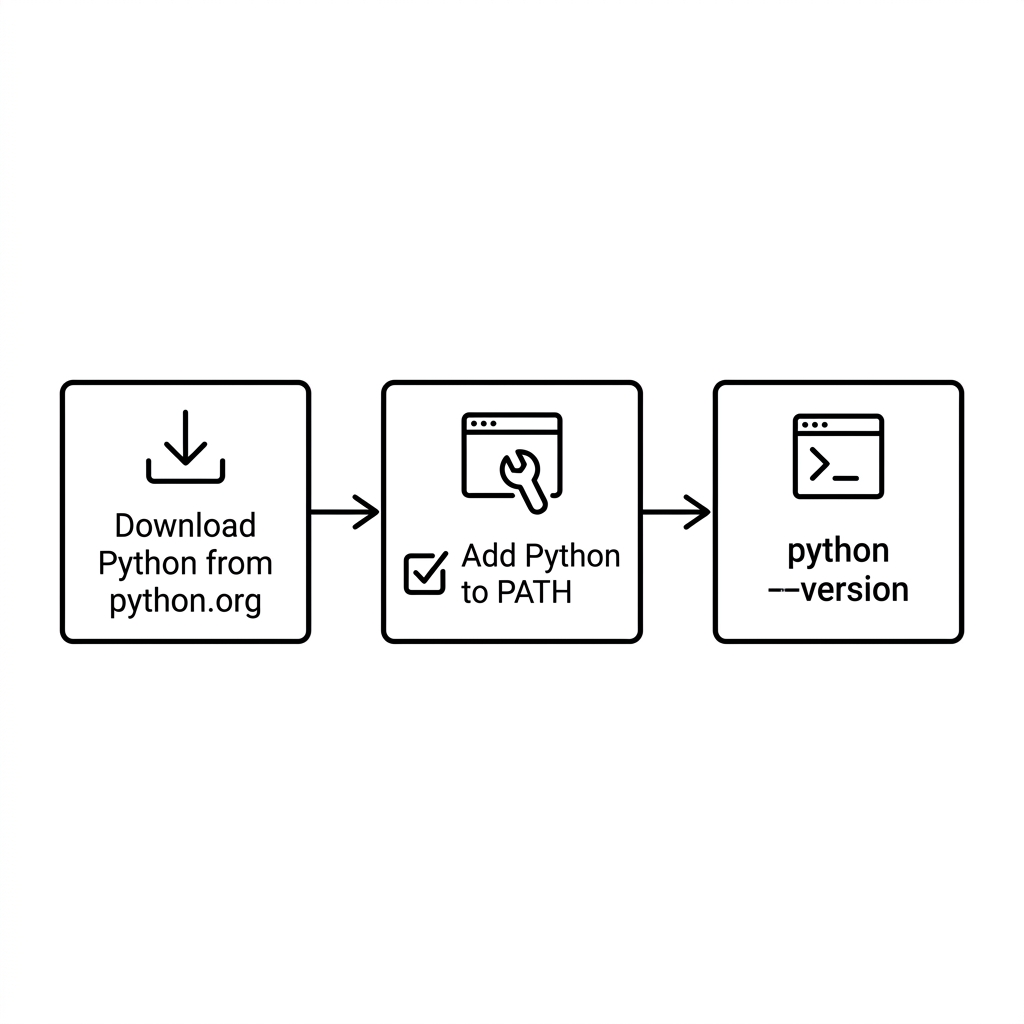
Check if Python is Already Installed Before installing Python, check if it is already available on your computer. Open your terminal (Command Prompt on Windows, Terminal on macOS/Linux) and type python --version or python3 --version. If a version number appears, Python is installed; otherwise, proceed to download it.
Download Python Installer Navigate to the official Python downloads page. The site automatically suggests the best version for your OS. Download the latest stable release (Python 3.x series) suitable for your operating system.
Run the Installer Launch the downloaded installer file. On Windows, ensure you check the box labeled Add Python to PATH before clicking Install Now. On macOS, drag Python to the Applications folder or follow the installer prompts. On Linux, you can use your package manager (like apt or yum) to install Python.
Verify the Installation After installation finishes, open a new terminal window and type python --version or python3 --version to confirm Python is correctly installed and accessible.
Install pip (Python Package Installer) Pip usually comes bundled with Python 3.x installations. Verify pip is installed by running pip --version or pip3 --version. If not installed, you can download and install it separately from pip’s official site.
Set Up a Code Editor or IDE While optional at this stage, installing a code editor like Visual Studio Code or an IDE like PyCharm will improve your coding experience. These tools help write, debug, and run Python code efficiently.
⚠️ Common Pitfall: Multiple Python Versions and Conflicts
Many systems, especially macOS and Linux, come with Python 2.x pre-installed for system utilities. Installing Python 3 alongside can sometimes cause confusion between python and python3 commands. Always check which version is the default by running python --version and python3 --version. Use python3 to explicitly run Python 3 if needed.
💡 Tip: Using Virtual Environments
After installation, it is best practice to use venv or other virtual environment tools to create isolated Python environments for your projects. This prevents dependency conflicts and keeps your global Python installation clean.
Create a Virtual Environment (Optional but Recommended) Use the following commands to create and activate a virtual environment named env in your project folder:
# Create virtual environment
python3 -m venv env

# Activate on Windows
.\env\Scripts\activate

# Activate on macOS/Linux
source env/bin/activate
🛠️ Real-World Use Case: Installing Python to Run Web Frameworks
Many popular web frameworks like Django and Flask require Python 3. By installing Python and pip, you unlock the ability to install these frameworks and start building robust, scalable web applications. This setup is the foundation for countless professional development workflows.
Congratulations! You now know how to install Python on your operating system, verify the installation, and prepare your development environment. This foundational step opens the door to exploring Python’s rich ecosystem and powerful capabilities. In the next lessons, you will write your first Python programs and learn to use Python’s tools effectively.
Quick Knowledge Check
Test what you just learned
Question 1 of 2
What is the purpose of adding Python to the system PATH during installation?
Question 2 of 2
Which command should you use on macOS to verify the installed Python 3 version after installation?
Loading results...