In Python programming, working with files is a fundamental skill. Whether you're reading data, saving user input, or managing configurations, you will frequently interact with files on your computer. But to access these files, you need to know their exact location on your system—their file path.
This lesson will guide you through what file paths are, how they work, and how you can manage them effectively in Python. By the end, you’ll be confident navigating file systems through your code and handling file paths in a cross-platform manner.
Understanding File Paths
A file path is a string that specifies the location of a file or directory on your computer’s file system. It acts like an address telling your program where to find or save a file.
File paths come in two main types:
- Absolute Paths: These specify the full location from the root of the file system down to the file. They always point to the exact same file, no matter where your program runs.
- Relative Paths: These specify a location relative to the current working directory of your program. They are shorter but dependent on where your Python script is running.
Before diving into examples, let's clarify some key terms:
- Root: The top-level directory. In Windows, this might be
C:\. In Unix/Linux or macOS, this is/. - Directory (Folder): Containers that hold files or other directories.
- Current Working Directory: The directory your Python program is currently operating in.
Absolute vs Relative Paths in Practice
Imagine you have a project folder on your desktop called MyProject. Inside it, there’s a file called data.csv. If your script is inside MyProject, here’s how you can refer to the file:
- Absolute path:
/Users/yourname/Desktop/MyProject/data.csv(macOS/Linux) - Relative path:
data.csv(if your script is in the same folder)
Relative paths can also go up or down the directory tree using .. to go up one level and folder names to go down:
../data.csvmeans "go up one directory, then finddata.csv"subfolder/data.csvmeans "go down intosubfolderand finddata.csv"
💡 Why Use Relative Paths?
Relative paths make your code more portable and flexible. Instead of hardcoding the full path which may differ on other computers, relative paths adapt based on where your script runs.
Path Syntax Differences: Windows vs Unix-like Systems
One challenge with file paths is that they differ between operating systems:
- Windows: Uses backslashes
\to separate directories, e.g.,C:\Users\yourname\Documents\file.txt. - macOS/Linux: Uses forward slashes
/, e.g.,/home/yourname/Documents/file.txt.
This means a path string hardcoded for one OS might not work on another. Python provides tools to handle this automatically, which we will explore shortly.
Common Path Components
Here is a quick overview of common symbols you might see in paths:
| Symbol | Meaning |
|---|---|
/ or \ | Directory separator (forward slash for macOS/Linux, backslash for Windows) |
. | Current directory |
.. | Parent directory (one level up) |
~ | User’s home directory (Unix-like systems) |
Working with File Paths in Python
Python has built-in ways to work with file paths that help you avoid manual string manipulation and OS incompatibilities.
The os.path Module
Before Python 3.4, the main way to handle paths was the os.path module. It provides functions like:
os.path.join(): Join parts of a path using the correct separator for the OSos.path.abspath(): Get the absolute path of a fileos.path.basename(): Get the filename from a pathos.path.dirname(): Get the directory name from a pathos.path.exists(): Check if a file or directory exists
📌 Deep Dive: Using os.path to Build Paths
import os

folder = "MyProject"
filename = "data.csv"

# Join folder and filename to create a path
path = os.path.join(folder, filename)
print("Joined path:", path)

# Get absolute path
abs_path = os.path.abspath(path)
print("Absolute path:", abs_path)

# Check if the file exists
exists = os.path.exists(abs_path)
print("Does the file exist?", exists)
Note how os.path.join() uses the right separator for your system automatically.
The Modern Way: pathlib Module
Since Python 3.4, the recommended way to work with paths is the pathlib module. It offers an object-oriented approach to file system paths, making path manipulations more intuitive.
With pathlib, paths are represented by Path objects. You can chain operations and access parts of the path easily.
📌 Deep Dive: Using pathlib.Path for File Paths
from pathlib import Path

folder = Path("MyProject")
filename = "data.csv"

# Create a path object by combining folder and filename
file_path = folder / filename
print("Combined Path:", file_path)

# Absolute path
abs_path = file_path.resolve()
print("Absolute Path:", abs_path)

# Check existence
print("Exists?", file_path.exists())

# Access parts of the path
print("Parent directory:", file_path.parent)
print("Filename:", file_path.name)
print("File suffix:", file_path.suffix)
The / operator overload in pathlib is a neat way to join paths — much cleaner than using os.path.join().
Finding the Current Working Directory
Often you want to know where your Python script is running to use relative paths correctly. You can find the current working directory with:
os.getcwd()Path.cwd()withpathlib
📌 Deep Dive: Getting Current Working Directory
import os
from pathlib import Path

print("Using os module:", os.getcwd())

print("Using pathlib:", Path.cwd())
Best Practices for Handling File Paths in Python
- Prefer
pathliboveros.pathfor new projects. It offers cleaner syntax and better functionality. - Avoid hardcoding absolute paths unless necessary. Use relative paths or config variables to keep code portable.
- Use
Path.resolve()oros.path.abspath()to get absolute paths when you need certainty about file locations. - Check if paths exist before reading or writing with
exists()to avoid runtime errors. - Be mindful of OS path separators. Let the Python standard library handle them to write cross-platform code.
⚠️ Important
When hardcoding paths, never mix forward and backward slashes arbitrarily. On Windows, use raw strings (r"C:\path\to\file") to avoid escape sequence issues, or better, use pathlib.
Advanced: Navigating and Manipulating Paths
The pathlib module lets you do more than just joining paths:
file_path.exists(): Check if path existsfile_path.is_file()andfile_path.is_dir(): Check typefile_path.mkdir(): Create directoryfile_path.rename(): Rename or move filesfile_path.iterdir(): Iterate over files in a directory
These methods give you powerful tools to manage files and directories programmatically.
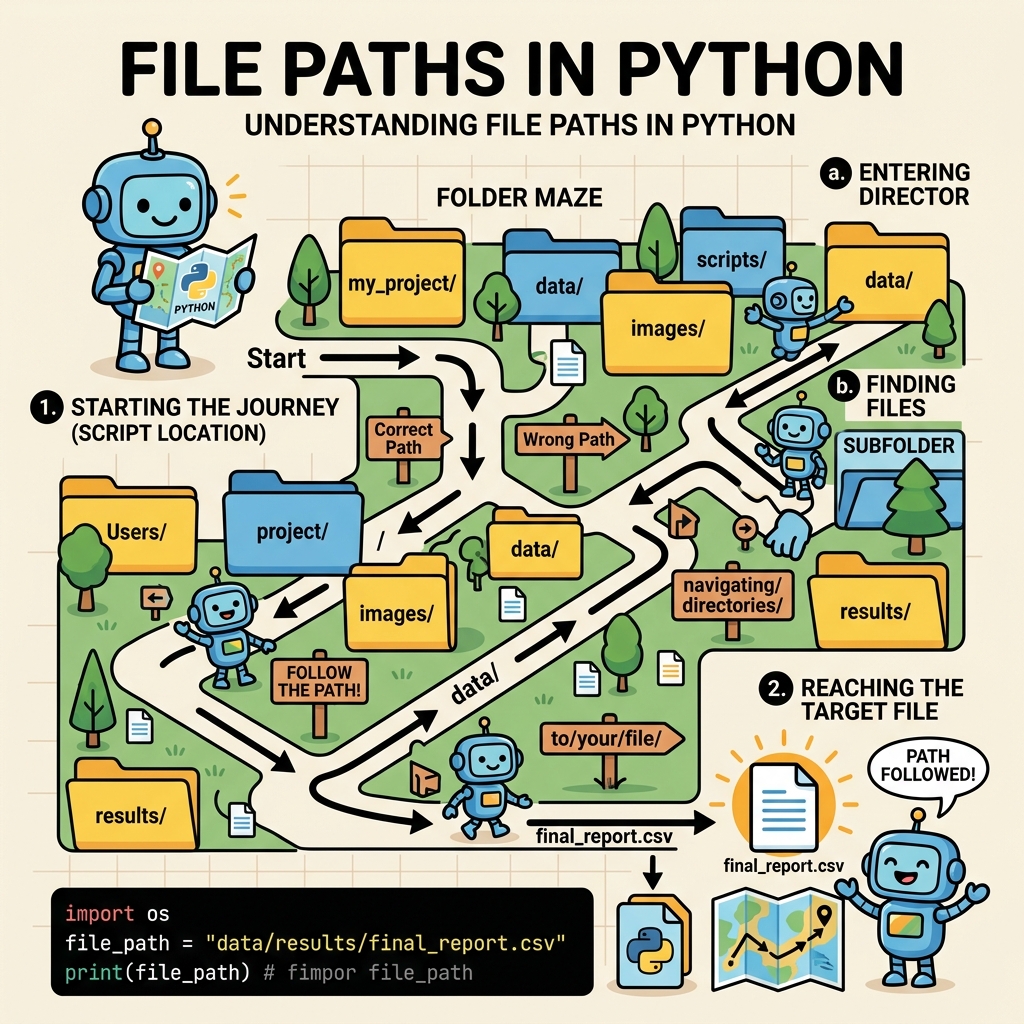
Example: Listing Files in a Directory
📌 Deep Dive: Using Path.iterdir() to List Directory Contents
from pathlib import Path

# Specify the directory path
directory = Path("MyProject")

# List all files and directories inside
if directory.exists() and directory.is_dir():
    for item in directory.iterdir():
        file_type = "Directory" if item.is_dir() else "File"
        print(f"{file_type}: {item.name}")
else:
    print("Directory not found.")
Summary
File paths are the backbone of file handling in Python. Understanding the difference between absolute and relative paths, and knowing how to manipulate them using os.path or, better yet, pathlib, is essential.
Always strive for code that works consistently across operating systems by avoiding hardcoded path separators and using Python's built-in utilities. With these skills, you can confidently read, write, and organize files programmatically.
Quick Knowledge Check
Test what you just learned
Question 1 of 2
Which Python module provides an object-oriented approach to handling file paths?
Question 2 of 2
What does the relative path ../data.csv mean?
Loading results...