Welcome to the practical guide on CSV Files, one of the most common and straightforward formats for storing and exchanging tabular data. Whether you're handling data exports, importing datasets into Python, or simply saving your work, understanding how to work with CSV files is an essential skill for any Python programmer.
In this lesson, you'll discover what CSV files are, their structure, and how to efficiently read, write, and manipulate CSV data using Python's built-in csv module as well as the powerful pandas library.
What is a CSV File?
CSV stands for Comma-Separated Values. It is a plain text file format used to store tabular data — numbers and text — in a simple and widely supported way. Each line in a CSV file corresponds to a row in the table, and each value in a row is separated by a delimiter, typically a comma.
Here's a tiny example of CSV content representing a list of students and their scores:
Name,Age,Score
Alice,23,88
Bob,25,92
Charlie,22,79
The first line usually contains the header — the column names — which helps identify the data fields in each row.
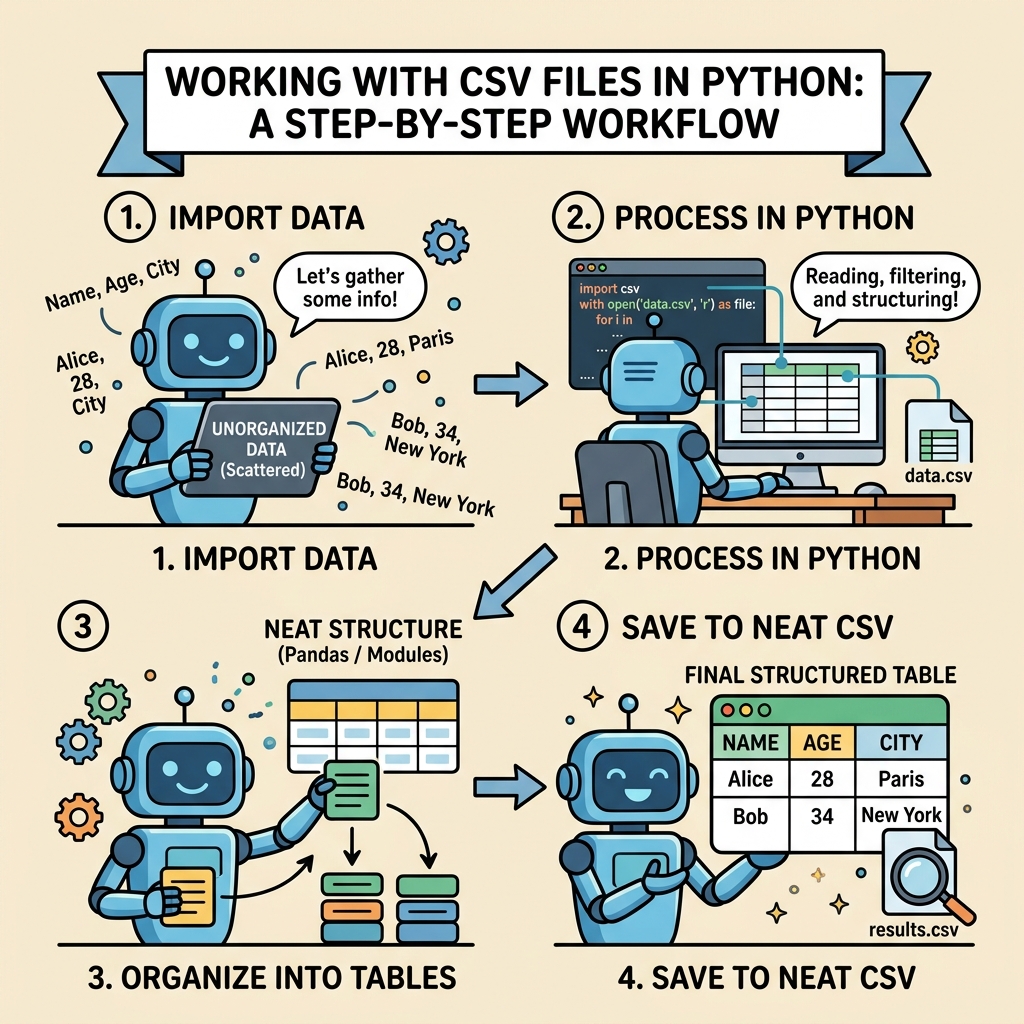
Why Use CSV Files?
- Simplicity: CSV files are easy to create and read because they are just plain text.
- Compatibility: Almost every spreadsheet program and many data tools support CSV.
- Lightweight: They have minimal overhead compared to complex formats like Excel or JSON.
- Human-readable: You can open and edit CSV files with any text editor.
💡 Key Note:
Despite their simplicity, CSV files have limitations — they do not support complex nested data, formatting, or data types beyond text and numbers. For more advanced data needs, formats like JSON or Excel might be preferable.
How CSV Files are Structured
At its core, a CSV file consists of:
- Header row (optional but common): Defines the column names.
- Data rows: Each subsequent line contains data values, separated by commas (or other delimiters).
CSV files may use different delimiters such as semicolons ; or tabs \t, depending on locale or application.
| Delimiter | Description |
|---|---|
| , (comma) | Standard delimiter in most English-speaking countries |
| ; | Common in European locales where comma is a decimal separator |
| \t (tab) | Used in TSV (Tab-Separated Values), a CSV variant |
Reading CSV Files in Python
Python’s built-in csv module is the go-to tool for reading and writing CSV files. To start, let's explore how to read a CSV file and access its contents.
📌 Deep Dive: Reading a CSV File with csv.reader
import csv

with open('students.csv', newline='') as csvfile:
    reader = csv.reader(csvfile)  # Create a CSV reader object
    header = next(reader)          # Extract the header row
    print('Column names:', header)

    for row in reader:
print('Row data:', row)Row data: ['Alice', '23', '88']
Row data: ['Bob', '25', '92']
Row data: ['Charlie', '22', '79']
Explanation:
open(..., newline='')ensures that Python handles line endings correctly on all platforms.csv.readerreturns an iterable reader object that parses each row as a list of strings.next(reader)fetches the first row, which is usually the header.
Reading CSV as Dictionaries
Sometimes, it's easier to work with rows as dictionaries where keys are column names. Python’s csv.DictReader class does exactly that:
📌 Deep Dive: Using csv.DictReader to Read CSV Rows as Dictionaries
import csv

with open('students.csv', newline='') as csvfile:
    reader = csv.DictReader(csvfile)
    for row in reader:
print(f"{row['Name']} is {row['Age']} years old with score {row['Score']}")Bob is 25 years old with score 92
Charlie is 22 years old with score 79
This method makes data access more intuitive by using descriptive keys instead of numeric indices.
Writing to CSV Files in Python
Creating or updating CSV files is just as simple. The csv.writer class helps you write rows to a CSV file.
📌 Deep Dive: Writing Rows with csv.writer
import csv

data = [
    ['Name', 'Age', 'Score'],
    ['David', 24, 85],
    ['Eva', 21, 90],
    ['Frank', 23, 75]
]

with open('new_students.csv', 'w', newline='') as csvfile:
    writer = csv.writer(csvfile)
writer.writerows(data) # Write all rows at oncenew_students.csv with the data above)Note the use of 'w' mode to open the file for writing, and newline='' which prevents extra blank lines on some systems.
Writing Dictionaries with csv.DictWriter
Similarly to reading, you can write dictionaries as rows with labeled columns:
📌 Deep Dive: Writing CSV with csv.DictWriter
import csv

fieldnames = ['Name', 'Age', 'Score']
rows = [
    {'Name': 'Grace', 'Age': 22, 'Score': 95},
    {'Name': 'Hank', 'Age': 24, 'Score': 80},
    {'Name': 'Ivy', 'Age': 23, 'Score': 85}
]

with open('dict_students.csv', 'w', newline='') as csvfile:
    writer = csv.DictWriter(csvfile, fieldnames=fieldnames)
    writer.writeheader()   # Write the header row
writer.writerows(rows) # Write multiple rowsdict_students.csv with labeled columns)Handling Special Cases in CSV Files
CSV files can have quirks that require extra care when reading or writing:
- Different delimiters: Use the
delimiterparameter to specify if not a comma. - Quoting: Fields that contain commas, quotes, or newlines are enclosed in quotes. Control quoting with the
quotecharandquotingparameters. - Line terminators: Different operating systems use different line endings; Python handles this with
newline=''inopen().
⚠️ Beware of Common Pitfalls:
If you open and write CSV files without newline='', you might end up with extra blank lines on Windows systems.
Also, mismatched delimiters or missing quotes can cause parsing errors or misaligned columns.
Using Pandas for CSV Files
While Python's csv module is great for learning and simple tasks, the pandas library offers a powerful, high-level interface to CSV files, especially for data analysis.
Here’s how to quickly load a CSV file into a pandas DataFrame, an efficient tabular data structure:
📌 Deep Dive: Reading CSV with Pandas
import pandas as pd

df = pd.read_csv('students.csv')
print(df.head()) # Display first 5 rows0 Alice 23 88
1 Bob 25 92
2 Charlie 22 79
You can also write DataFrames back to CSV with a single command:
📌 Deep Dive: Writing CSV with Pandas
df.to_csv('output_students.csv', index=False)Why Pandas? It offers built-in support for missing data, type inference, filtering, aggregation, and much more — all of which make it ideal for real-world data workflows.
Summary: Best Practices for Working with CSV Files
- Always specify
newline=''inopen()when working with CSV files in Python to avoid line-ending issues. - Use
csv.DictReaderandcsv.DictWriterfor more readable code when handling data with headers. - Be mindful of delimiters and quoting rules; specify them explicitly if your CSV uses non-standard formats.
- Consider using
pandasfor more complex data handling and analysis tasks. - Keep your CSV files UTF-8 encoded to avoid encoding headaches when working with special characters.
💡 Pro Tip:
CSV files are great for portability and simplicity, but always validate your CSV data before processing — mismatched columns, missing headers, or irregular quoting can cause subtle bugs.
Next Steps
Try creating your own CSV files with Python and experiment reading them back. Challenge yourself by loading CSV files with different delimiters or containing quoted fields. When you feel comfortable, explore pandas to analyze real-world datasets like sales, weather, or survey data.
Understanding CSV files is a cornerstone for data manipulation and will open the door to working with databases, web APIs, and data science projects.
Quick Knowledge Check
Test what you just learned
Question 1 of 2
Which Python class would you use to read a CSV file row as a dictionary mapping column names to values?
Question 2 of 2
When opening CSV files for writing in Python, why is it important to specify newline='' in open()?
Loading results...