Python’s true power lies in its vast ecosystem of packages and libraries. These packages allow you to extend Python’s capabilities far beyond the standard library, enabling you to do everything from data analysis and machine learning to web development and automation. But how do you get these packages onto your system? The answer is pip, Python’s official package installer.
In this lesson, we’ll explore everything you need to know to install packages using pip. Whether you’re just starting out or want to solidify your understanding, this guide covers the essentials, common pitfalls, and best practices to manage Python packages effectively.
What is pip?
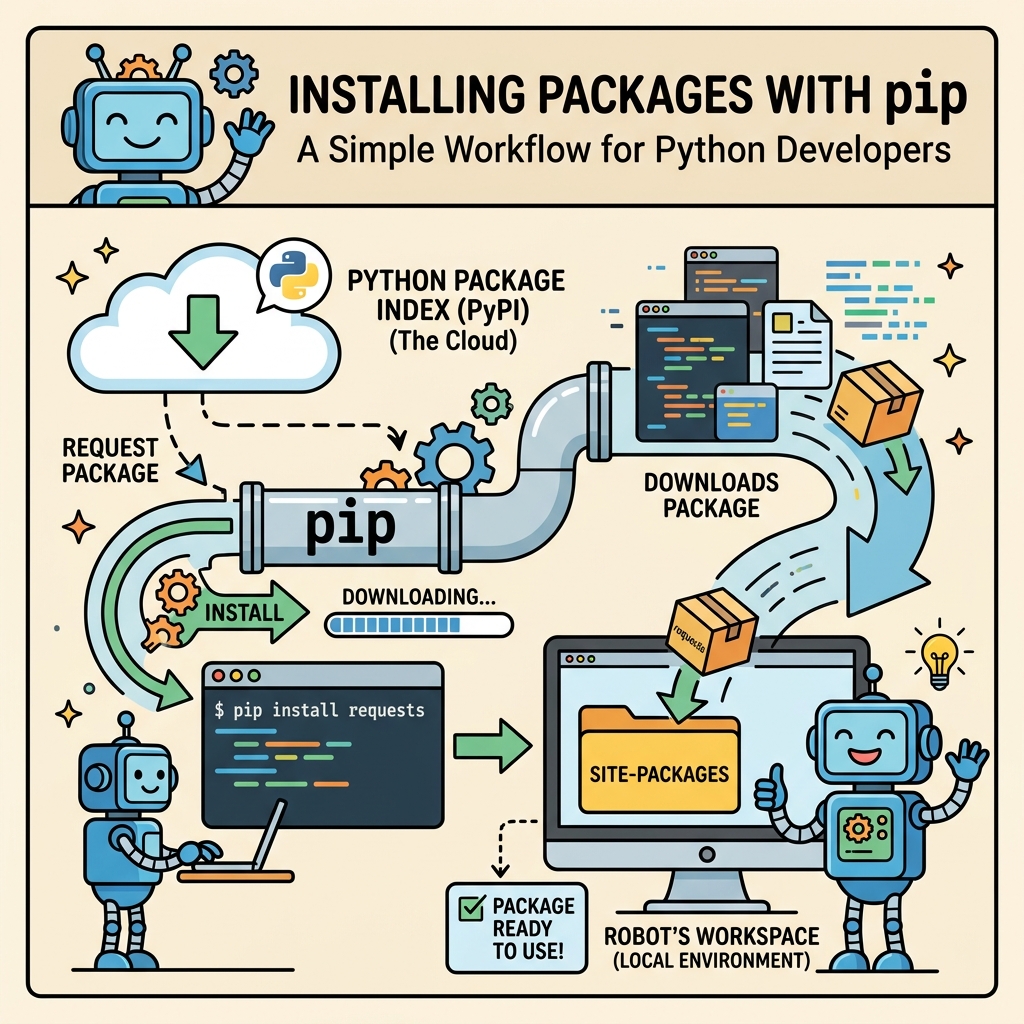
pip is a command-line tool that lets you download and install Python packages from the Python Package Index (PyPI) and other package repositories. Most Python installations come with pip pre-installed, making it easy to access thousands of third-party packages.
💡 Why pip?
Think of pip as your Python package delivery service. Instead of manually downloading and setting up code libraries, pip handles finding, downloading, and installing packages for you—quickly and reliably.
Checking if pip is installed
Before installing packages, you want to make sure pip is ready to use on your system.
Open your terminal or command prompt and run:
📌 Deep Dive: Verify pip Installation
pip --versionIf you see a version number and location like above, you’re good to go! If not, pip might not be installed or not added to your system’s PATH environment variable.
Installing pip if Missing
If pip is not installed, you can install it easily:
- On most systems with Python 3.4+,
pipshould be bundled. You can try reinstalling Python to fix this. - Alternatively, download get-pip.py and run
python get-pip.pyin your terminal.
Basic Package Installation with pip
The simplest way to install a package is:
📌 Deep Dive: Installing a Package
pip install package_nameInstalling collected packages: package_name
Successfully installed package_name-1.0.0
For example, to install the popular library requests for HTTP requests:
📌 Deep Dive: Installing requests
pip install requestsDownloading requests-2.28.1-py3-none-any.whl (62 kB)
Installing collected packages: requests
Successfully installed requests-2.28.1
Now you can import requests in your Python scripts and start making HTTP calls.
Upgrading Packages
Sometimes you want to update a package to the latest version to get new features or security fixes. You can do this by adding the --upgrade flag:
📌 Deep Dive: Upgrading a Package
pip install --upgrade package_nameDownloading package_name-2.0.0-py3-none-any.whl (50 kB)
Installing collected packages: package_name
Successfully installed package_name-2.0.0
This ensures you are working with the newest version available on PyPI.
Specifying Versions
Sometimes you need a specific version of a package to ensure compatibility. You can specify the version number like this:
📌 Deep Dive: Installing a Specific Version
pip install package_name==1.2.3Downloading package_name-1.2.3-py3-none-any.whl (45 kB)
Installing collected packages: package_name
Successfully installed package_name-1.2.3
You can also specify other version constraints:
>=1.0.0— version 1.0.0 or higher<2.0.0— any version less than 2.0.0~=1.4.2— compatible with version 1.4.2 (usually means >=1.4.2 and <2.0.0)
Installing Multiple Packages at Once
You can install multiple packages in a single command by listing them separated by spaces:
📌 Deep Dive: Installing Multiple Packages
pip install requests numpy pandasCollecting numpy
Collecting pandas
Installing collected packages: requests, numpy, pandas
Successfully installed requests-2.28.1 numpy-1.23.1 pandas-1.5.0
Using requirements.txt for Project Dependencies
When working on projects, it’s a good practice to document the packages and versions your project depends on. This file is commonly called requirements.txt and lists packages line by line.
Example requirements.txt file:
📌 Deep Dive: Sample requirements.txt
requests==2.28.1
numpy>=1.23.0
pandas~=1.5.0
To install all dependencies from this file, run:
📌 Deep Dive: Installing from requirements.txt
pip install -r requirements.txtCollecting numpy>=1.23.0
Collecting pandas~=1.5.0
Installing collected packages: requests, numpy, pandas
Successfully installed requests-2.28.1 numpy-1.23.1 pandas-1.5.0
This is especially helpful for sharing projects with collaborators or deploying applications to servers.
Virtual Environments and Package Management
One common challenge when managing packages is avoiding conflicts between projects that require different package versions. The solution is to use virtual environments.
A virtual environment is an isolated Python environment that keeps dependencies separate from your global Python installation.
💡 Think of virtual environments like separate sandboxes for each project, where you can install packages without affecting other projects or the global system.
After activating a virtual environment, pip install commands only affect that environment, simplifying dependency management and preventing “dependency hell.”
Common pip Commands Summary
pip Commands| Command | Description |
|---|---|
pip install package_name | Install the latest version of a package |
pip install package_name==1.2.3 | Install a specific version |
pip install --upgrade package_name | Upgrade to the latest version |
pip uninstall package_name | Remove a package |
pip freeze | List installed packages with versions |
pip install -r requirements.txt | Install packages from a requirements file |
Handling Package Installation Issues
Occasionally, you might face errors during installation. Here are some tips to troubleshoot:
- Permissions: Use
sudo(Linux/macOS) or run command prompt as Administrator (Windows) if permission errors occur, but be cautious. - Use Virtual Environments: Avoid global installs that can cause conflicts.
- Upgrade
pip: Older versions ofpipmight have bugs. Upgrade it withpip install --upgrade pip. - Check Python Version: Some packages only support certain Python versions.
⚠️ Avoid Installing Packages Globally Unless Necessary
Installing packages globally can lead to version conflicts and permission issues. It’s best practice to use virtual environments for project-specific dependencies.
Upgrading pip Itself
To keep your package installer updated for best performance and security:
📌 Deep Dive: Upgrade pip
pip install --upgrade pipDownloading pip-23.0.1-py3-none-any.whl (2.1 MB)
Installing collected packages: pip
Successfully installed pip-23.0.1
Summary
Mastering pip is a foundational skill in Python development. It lets you:
- Install and upgrade packages with simple commands
- Manage project dependencies efficiently
- Avoid conflicts by leveraging virtual environments
- Keep your tools and libraries up-to-date
With this knowledge, you can confidently navigate Python’s rich ecosystem and accelerate your development process.
Quick Knowledge Check
Test what you just learned
Question 1 of 2
What is the correct pip command to install a package named flask?
Question 2 of 2
Which of the following is the best practice when managing packages for a Python project?
Loading results...